
Zenless Zone Zero is a sci-fi action RPG developed by miHoYo, the creators of Genshin Impact. Set in a post-apocalyptic urban environment, the game immerses players in a vibrant, futuristic cityscape teeming with danger and mystery. Players take on the role of a “Proxy”, guiding survivors through perilous missions against monstrous entities known as “Ethereals”.
Many Mac users are eager to play the mobile game, however, since it’s primarily designed for other platforms, you’ll need to use some workarounds. This tutorial will guide you through two methods: PlayCover and MuMuPlayer Pro.
1: Using PlayCover
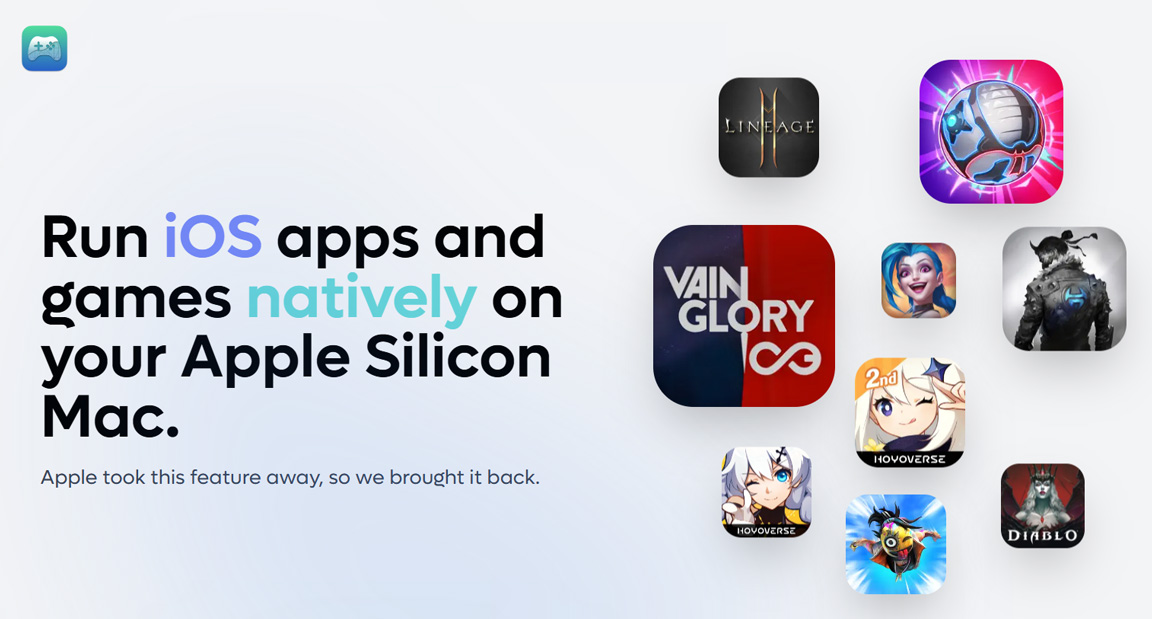
PlayCover is an application that allows you to run iOS apps on your Mac. Here’s how you can use it to play Zenless Zone Zero.
Prerequisites
- A Mac running macOS 11.0 (Big Sur) or later.
- An Apple ID to download apps from the App Store.
Steps
-
Download PlayCover
- Visit PlayCover and download the latest release.
-
Install PlayCover
- Open the downloaded
.dmgfile and drag PlayCover to your Applications folder.
- Open the downloaded
-
Set Up PlayCover
- Open PlayCover from your Applications folder. You might need to bypass the security settings by going to System Preferences > Security & Privacy > General and clicking “Open Anyway.”
- Sign in with your Apple ID if prompted.
-
Download Zenless Zone Zero IPA
- You will need the IPA file for Zenless Zone Zero. You can find this by searching online or using a third-party service that provides IPA files.
-
Install Zenless Zone Zero on PlayCover
- Drag the Zenless Zone Zero IPA file into the PlayCover window. PlayCover will install the app.
- Once installed, you should see Zenless Zone Zero in the PlayCover app list.
-
Run Zenless Zone Zero
- Click on Zenless Zone Zero in PlayCover to launch the game.
- You may need to adjust some settings or controls within PlayCover to optimize your gaming experience.
2: Using MuMuPlayer Pro
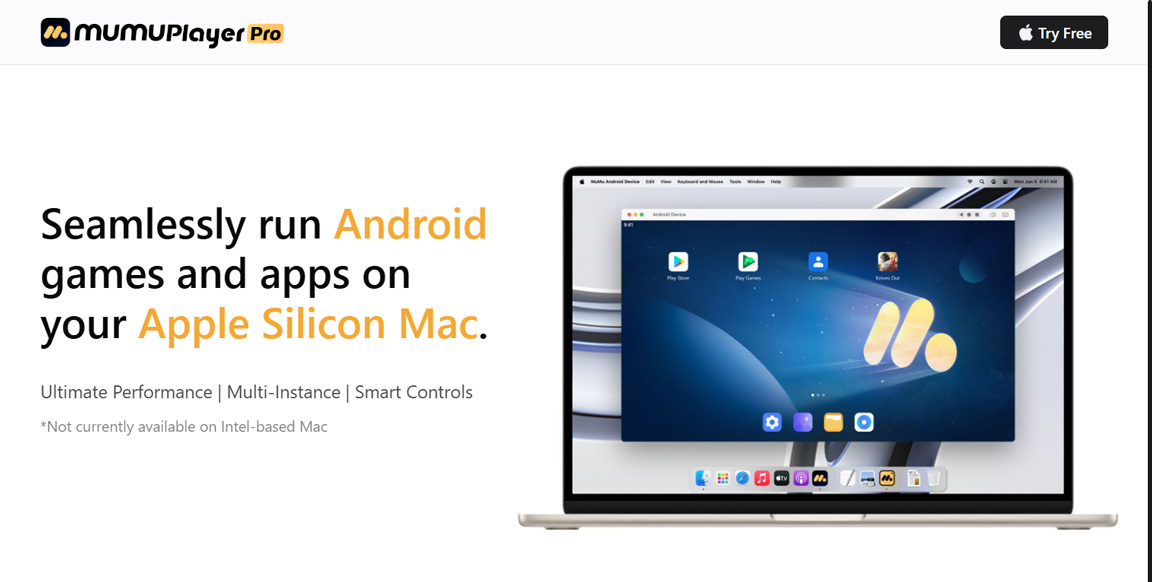
MuMuPlayer Pro is an Android emulator that allows you to run Android apps on your Mac. Follow these steps to play Zenless Zone Zero using MuMuPlayer Pro.
Prerequisites
- A Mac running macOS 10.12 (Sierra) or later.
- A Google account to access the Google Play Store.
Steps
-
Download MuMuPlayer Pro
- Visit MuMuPlayer Pro and download the Mac version.
-
Install MuMuPlayer Pro
- Open the downloaded
.dmgfile and drag MuMuPlayer Pro to your Applications folder.
- Open the downloaded
-
Set Up MuMuPlayer Pro
- Open MuMuPlayer Pro from your Applications folder. Follow the on-screen instructions to complete the setup.
- Sign in with your Google account to access the Google Play Store.
-
Install Zenless Zone Zero
- Open the Google Play Store within MuMuPlayer Pro.
- Search for Zenless Zone Zero and install it.
-
Run Zenless Zone Zero
- Once installed, you can find Zenless Zone Zero in the MuMuPlayer Pro app list.
- Click on the game icon to launch it.
-
Optimize Settings
- You may need to adjust settings within MuMuPlayer Pro to ensure the game runs smoothly. This can include adjusting the resolution, allocating more RAM, or tweaking other performance settings.
ZZZ MAC
Zenless Zone Zero promises an exhilarating experience for fans of action-packed, story-driven games with its dynamic combat system, rich narrative, and stunning visuals. Both PlayCover and MuMuPlayer Pro offer viable methods for playing Zenless Zone Zero on your Mac. Choose the one that best fits your needs and enjoy the game! If you encounter any issues, refer to the respective community forums or support resources for additional help.